Requests arrive from everywhere. The annual plan comes together in one place.
The requester submits, approvers decide in turn under your company’s rules, HR organises. Meanwhile the annual plan shows what is coming, for how many people, at what cost — and on which cost centre.
The path of a request
Four steps, and at each one you can see where it stands and who has it. Every decision, reason and comment goes into the item’s log.
Request
Title, type, area, cost centre, planned months, headcount, planned cost with currency, justification — and the quote as a PDF, if there is one. The request is saved as a draft and only reaches HR once submitted.
HR review
HR sends it for approval, approves it directly, returns it for changes, postpones or rejects it. Returning, postponing and rejecting need a reason.
Approval chain
Approvers decide in turn: only the next one in line gets the notification and the decision buttons. After a return, approval of the corrected request starts again from the top.
Organising and closing
Participants by name, groups with date and venue, attendance, then “Completed” and closing. HR’s own plan items are created as approved straight away.
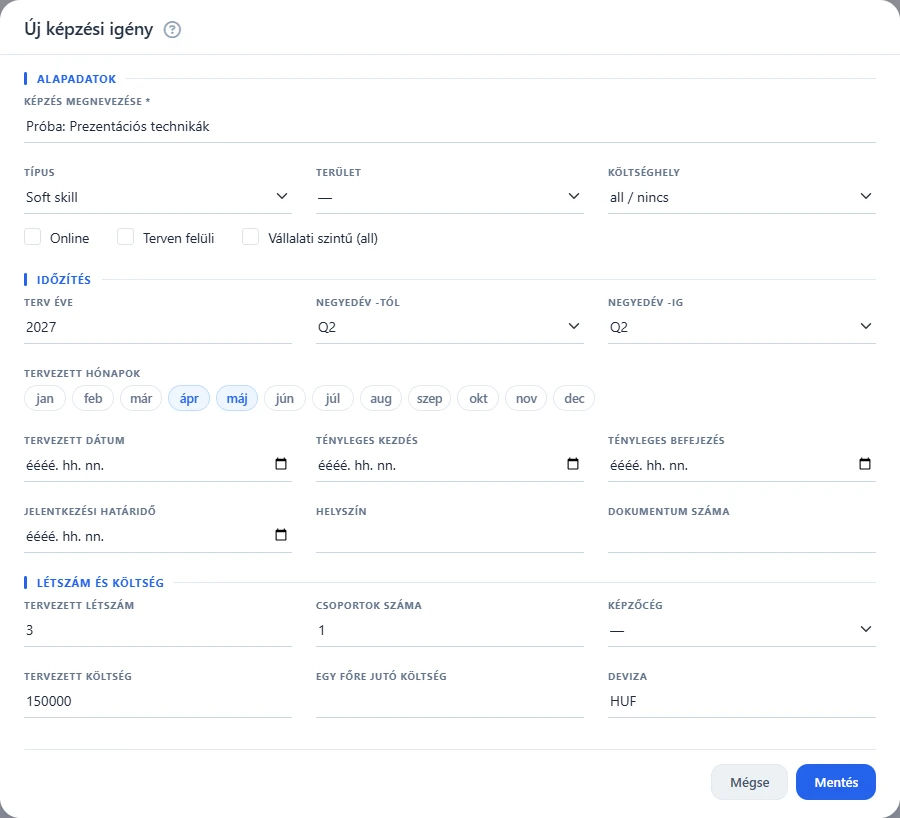
A year of training in one list.
From requests and plan items alike. Filter by year, request and plan status, type, area and cost centre; at the top, the summary: items, planned headcount, planned and actual cost. Excel or CSV exports exactly the filtered list.

The request status shows where approval stands; the plan status shows where delivery stands: not started, in preparation, in progress, postponed, closed or cancelled.
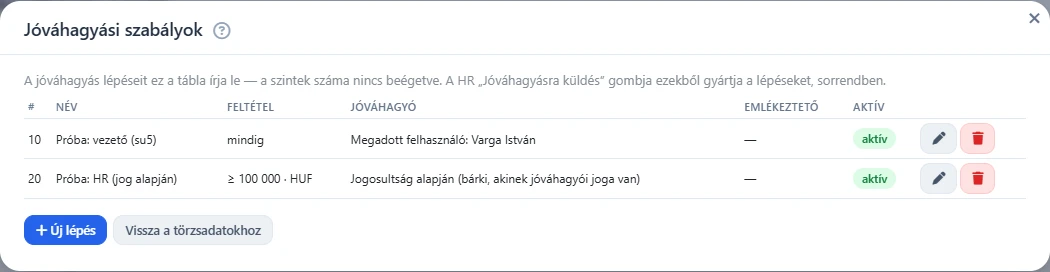
Who decides, and in what order? Your company’s rules say.
The approval steps are set out in a table; the number of levels is not hard-coded. When a request is sent for approval, the system goes through the rules in order, and every rule whose conditions are all met becomes a step.
Approver
A named person, the owner of the area or cost centre, the requester’s manager, or anyone with approval rights. A deputy can be added: they can decide too, and they get the e-mail as well.
Condition
A planned cost band with currency, area, training type, cost centre. With no condition, the step is always part of the chain.
Decision
Approval needs no comment; rejecting, returning and postponing need a reason. Rejection is final — if it only needs fixing, the approver returns it.
Reminder
If the company switches it on: a few days without a decision → a reminder to the approver, later escalation.
Example: manager (always) → area owner (always) → director (above 5000 euros). A 3000-euro request gets two steps, an 8000-euro one three.
Planned and actual cost, split by cost centre.
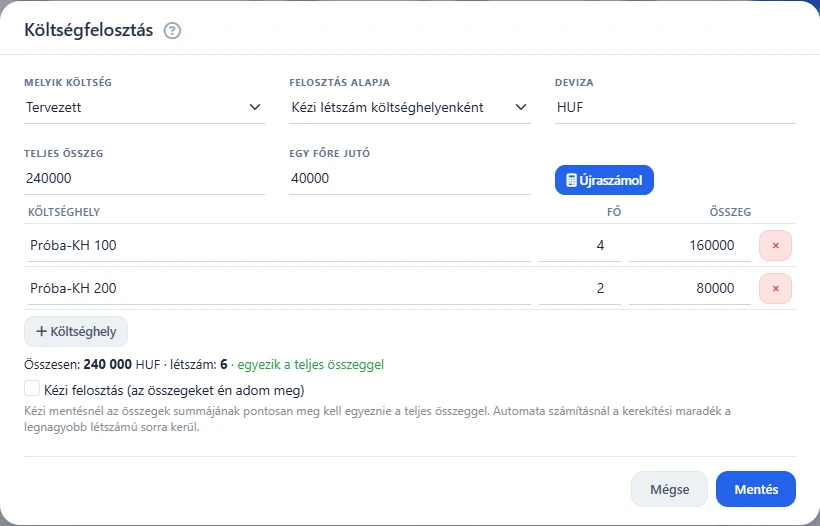
Cost is not one number at the bottom of a spreadsheet: per item, planned and actual, with currency, and split across the cost centres the participants come from.
Planned and actual
The two are stored separately, and so are their splits. The actual cost and date go in after the training.
Currency
Forints, euros or another, with a three-letter code. The annual plan summary adds up the amount converted to forints; if that is missing for a foreign-currency item, it warns you.
Split
By the cost centres of the named participants, or by headcount per cost centre entered by hand; the total or the per-person amount is enough. The rows always add up exactly to the total — the rounding remainder goes to the row with the most people.
Budget figures
An annual cost budget can be recorded for the company, an area or a cost centre.
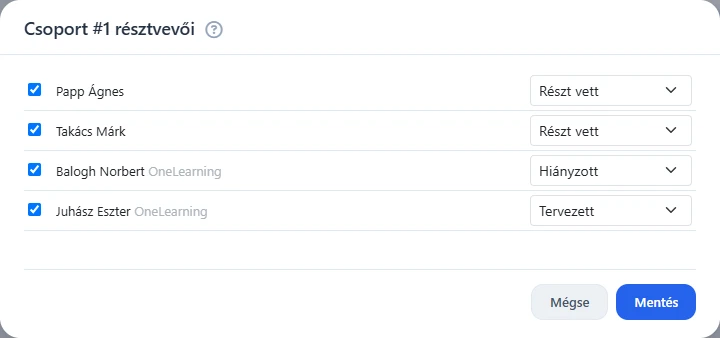
Groups, attendance, a survey after the training.
An approved course can run in several groups. For each group: date, venue, training provider, headcount — and at the end, who was there.
Participants
By name or employee number, up to the planned headcount. A participant can be in one group at a time; anyone who was absent or cancelled can move to the next one.
Attendance
Planned, attended, absent, cancelled — per group.
Evaluation survey
Assigned to the course or one of its groups, scheduled from the start, the end or the completion date, with a deadline. Each course gets its own copy, so results never mix.
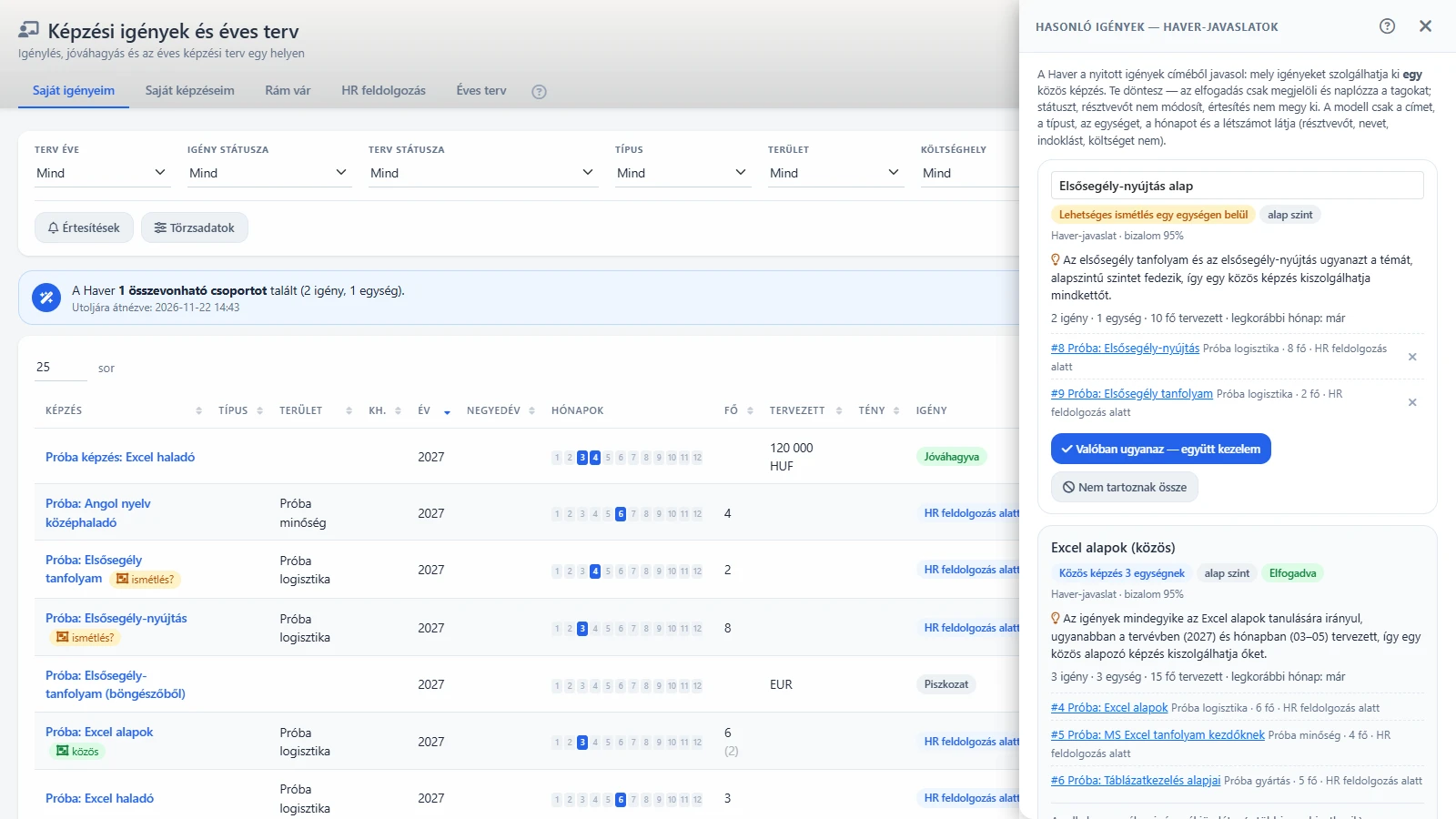
Three units asking for the same thing? One course will do.
Logistics, quality and production all want Excel basics, each under a different name. The system picks out which open requests could be served by one shared course — HR decides.
Group suggestion
Requests on the same topic and level from the same plan year: from several units, a “shared course”; within one unit, a “possible repeat”. Basic and advanced never end up in the same group.
Suggestion with a reason
If switched on, Haver, the built-in helper, also suggests groups from the titles, with a reason. It only sees the title, type, unit, month and headcount — no participants, names, justification or cost.
HR decides
Accepts (the title can be rewritten), removes a request, or marks that they do not belong together — that pair is never suggested again. Accepting does not change the requests’ status; it only marks and logs them.
Shared session
One click on an accepted group: participants are combined from the requests, each person once, and the shared participant list can be downloaded.
Already when entering
When a new request is entered, the window tells anyone who sees all requests if a similar open request already exists.
Who sees what, and who gets an e-mail when
- The requester sees their own requests, where approval stands and who has it.
- The approver sees, on the “Waiting for me” tab, only what they have to decide now; the link in the notification e-mail goes there.
- The participant sees their own courses: when they are planned and where they stand — not the cost, the justification or other participants.
- The manager, if the company switches it on, sees their direct reports’ requests and courses, with cost, read-only.
- Each quarter the area owner gets a list of open items, and the waiting approver and HR get reminders — each by the company’s own rule, with a test run and a send log.
Frequently asked questions about the annual training plan
What needs setting up to get started?
Training types, areas and cost centres with their owners, training providers and the approval rules. The area owner gets the quarterly e-mail and is the “area owner” approver. Budget figures and notifications can be added as needed.
Does it work with quotes in foreign currency?
Yes. Every item has its own currency, and the cost condition of an approval rule can be set with a currency too. The annual plan summary adds up the amount converted to forints and warns you if that is missing for a foreign-currency item.
Can employees see what their training costs?
No. On the “My courses” tab they see what they are enrolled on by name: when it is planned, where approval and delivery stand. Not the cost, the justification, the attached PDF or the other participants.
What happens if no approval rule fits a request?
Then HR can approve it directly. The Approvers column shows “no matching rule” in that case, so this is visible as soon as the request is submitted.
Do similar requests have to be merged by hand?
No, but the decision is HR’s. The system suggests which requests could be served by one shared course — and if switched on, Haver does too —, HR accepts or rejects, and one click turns an accepted group into a shared session. The requests’ status does not change.
Does it replace the annual training plan spreadsheet?
The annual plan comes together in the system, from requests and HR’s own plan items. Exactly the list shown by the filters can be exported to Excel or CSV.
Bring last year’s plan. We will show you how it would look here.
A spreadsheet of last year’s requests and how approval works today are enough for a first conversation.